Documentation start

Tutorials

Teambridge tutorials

Tutorials explain how to configure a specific operating pattern. Each guide starts with the business problem, then connects records, fields, rules, access, workspaces, and expected outcomes.

Configure shift eligibility and auto-rejection

Use this when schedulers are reviewing requests that should be blocked automatically.

  • Identify the rule: overtime, location, credential, role, or client requirement
  • Make sure the required fields exist on Users, Shifts, Locations, or Roles
  • Create the condition that evaluates the request
  • Choose whether Teambridge should block, flag, or route to review
  • Test one eligible and one ineligible worker before turning it on
Use performance tiers to control access

Use this when you want high-performing workers to receive earlier access, auto-approval, or priority workflows.

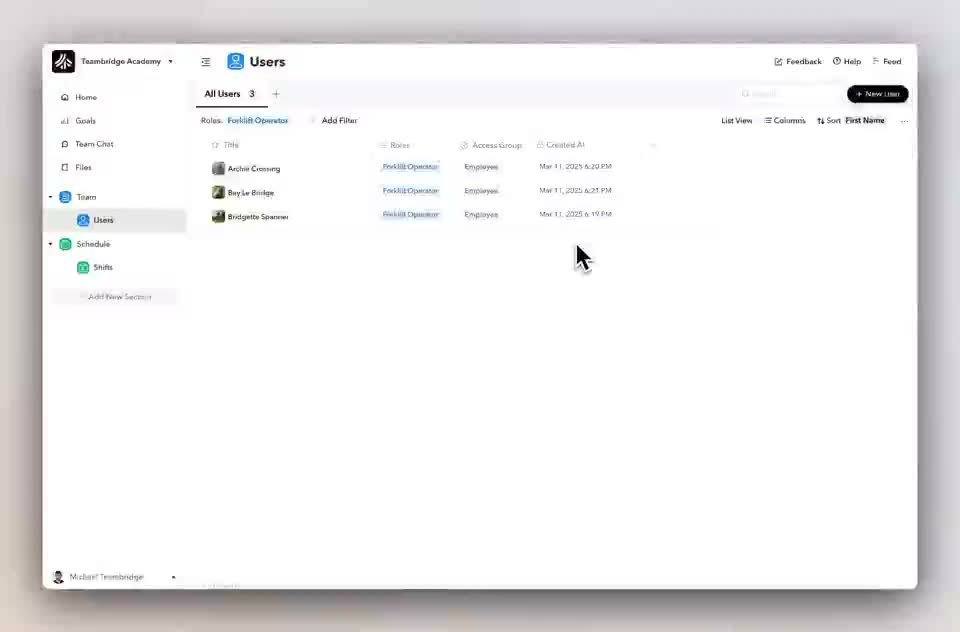
  • Create tier records such as Gold, Silver, and Bronze
  • Add an Employee Tier field to Users
  • Add accepted tiers to Shifts
  • Roll up late, no-show, and cancellation counts
  • Create automations that move workers between tiers
  • Use tier filters in open-shift access or approval rules

Capture mobile field activity

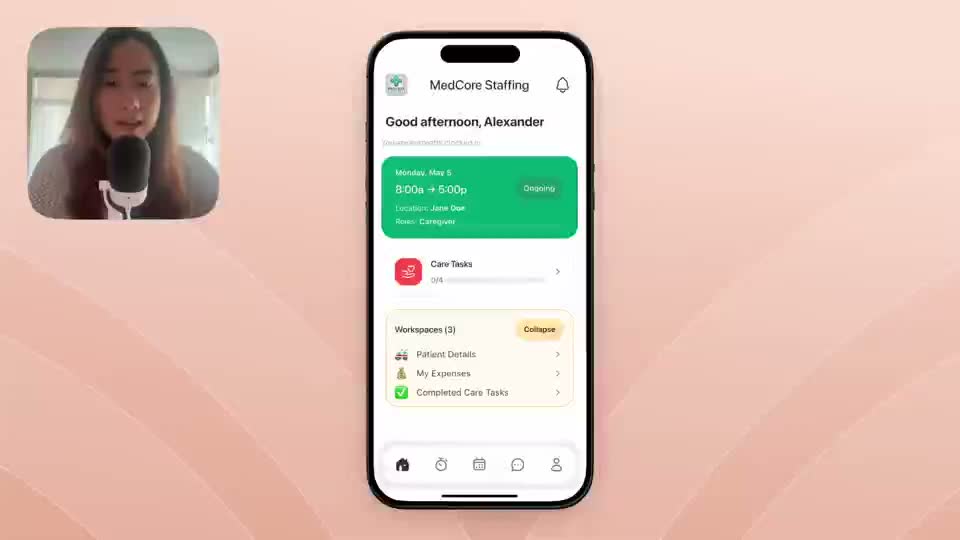
Use this when completed work needs to become a real-time operational record, not a paper note.

  • Decide what activity should be captured during the shift
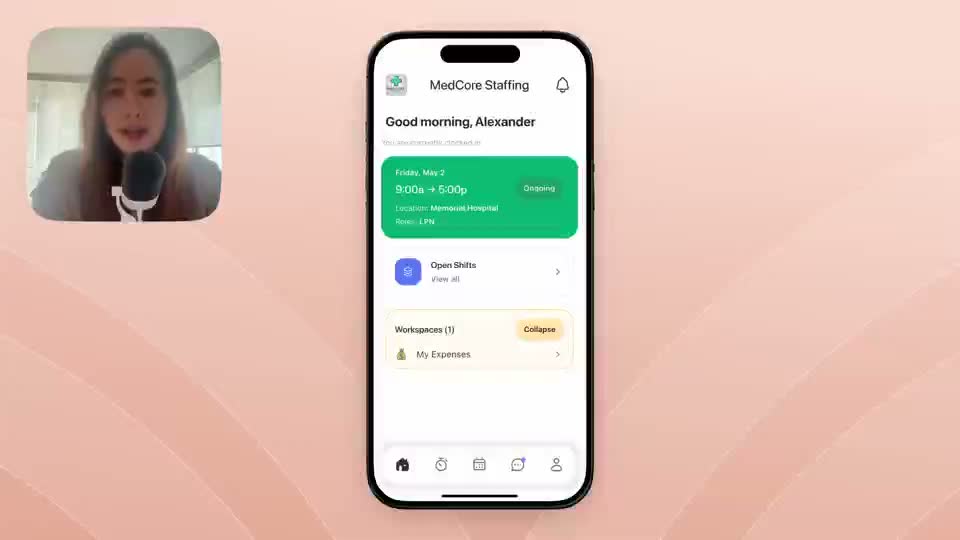
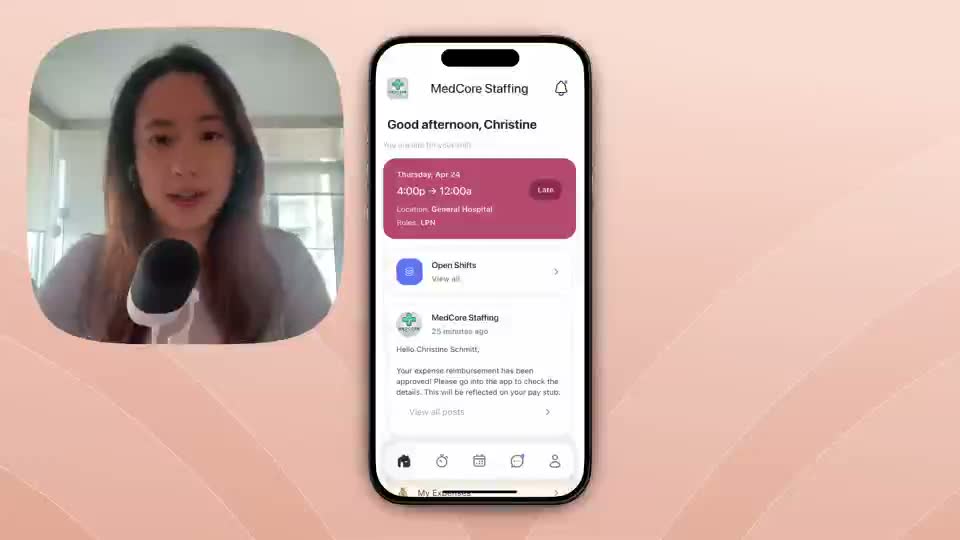
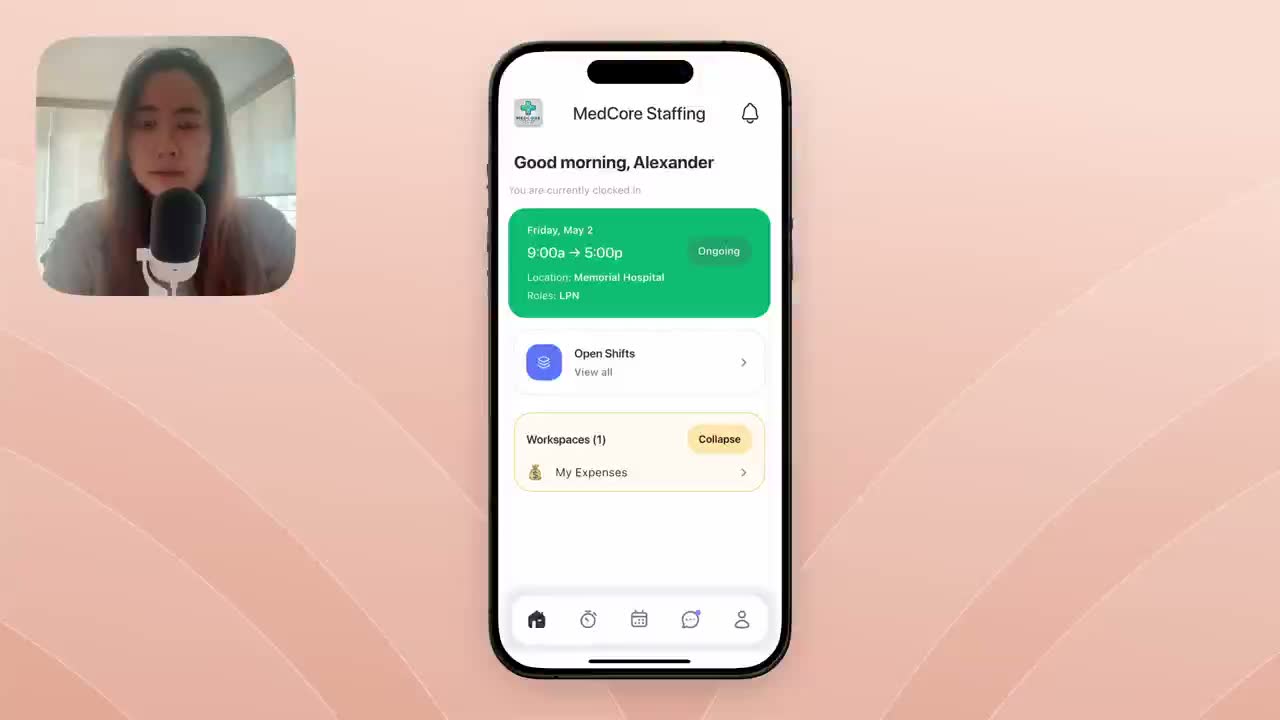
  • Attach tasks, forms, surveys, or content to the mobile experience
  • Scope visibility by access group, facility, or role
  • Store submissions against the related worker, shift, or location
  • Review activity in admin dashboards for quality, billing, or compliance

Connect worker submissions to payroll and billing

Use this when callbacks, reimbursements, seniority, or activity logs should affect pay and bill outputs.

  • Create fields for the submission details and status
  • Make the mobile action available to the right access group
  • Route new records to an admin review workspace
  • Define what happens when a submission is approved
  • Validate how the approved record appears in payroll, billing, or reporting

Next

Continue through the documentation

View all documentation