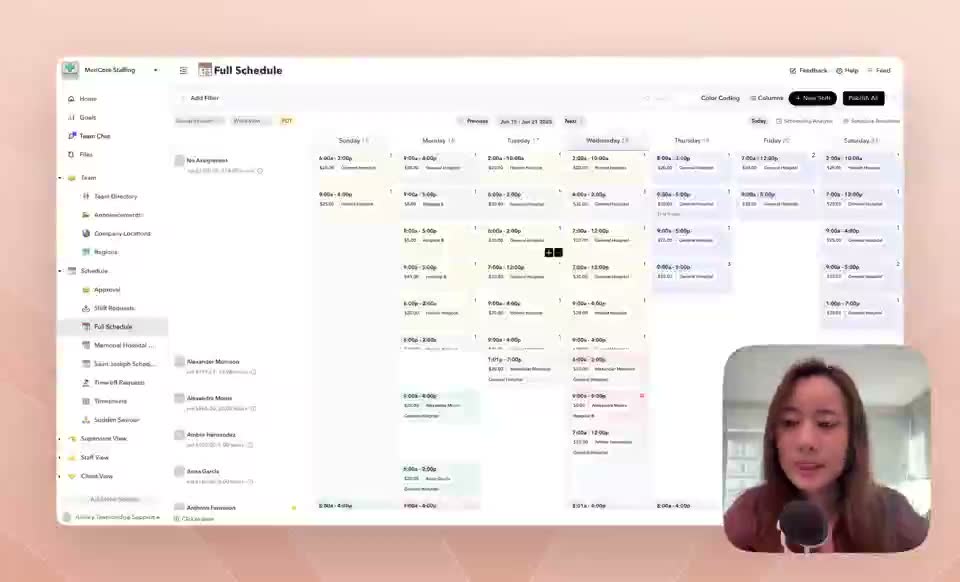
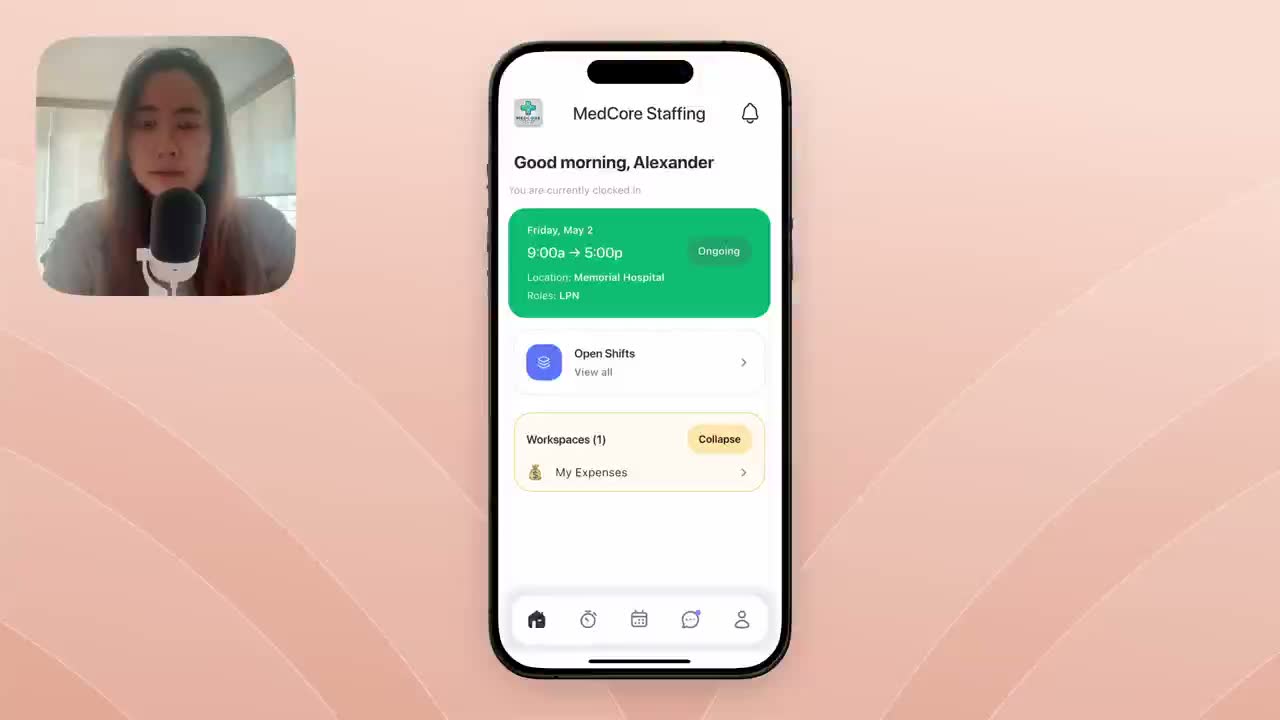
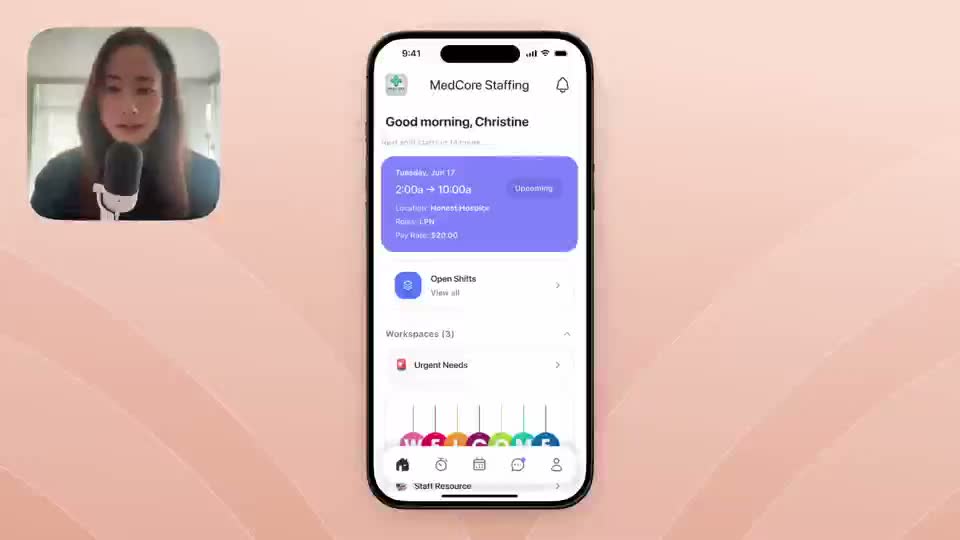
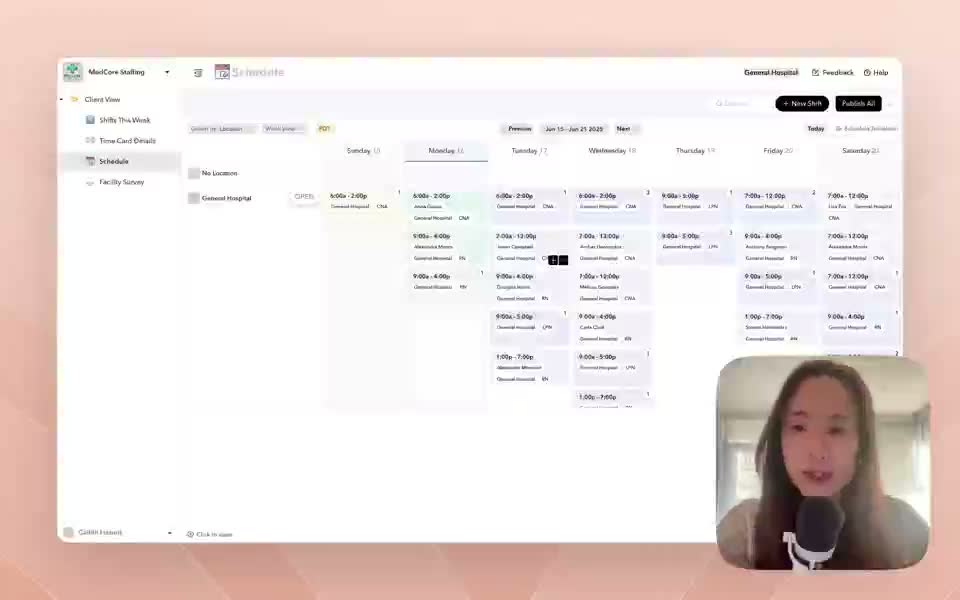
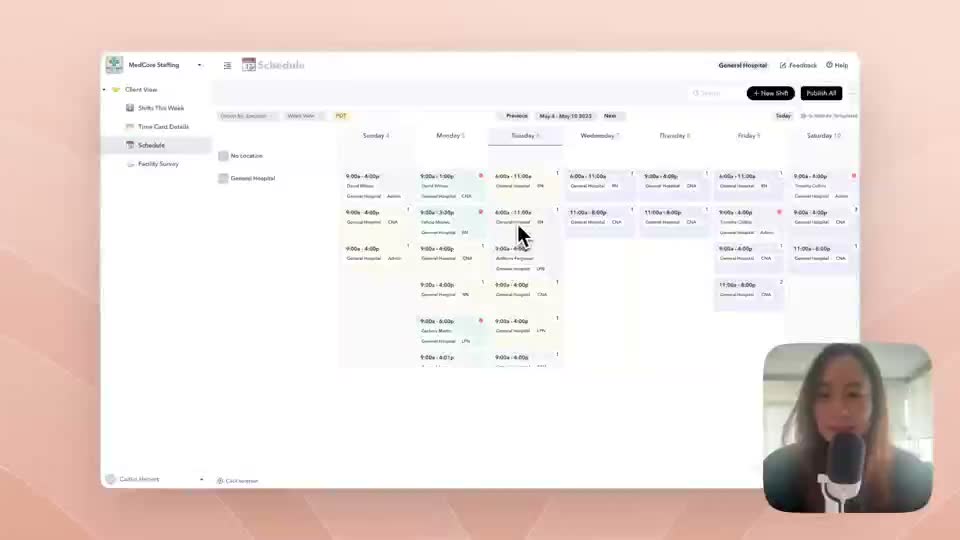
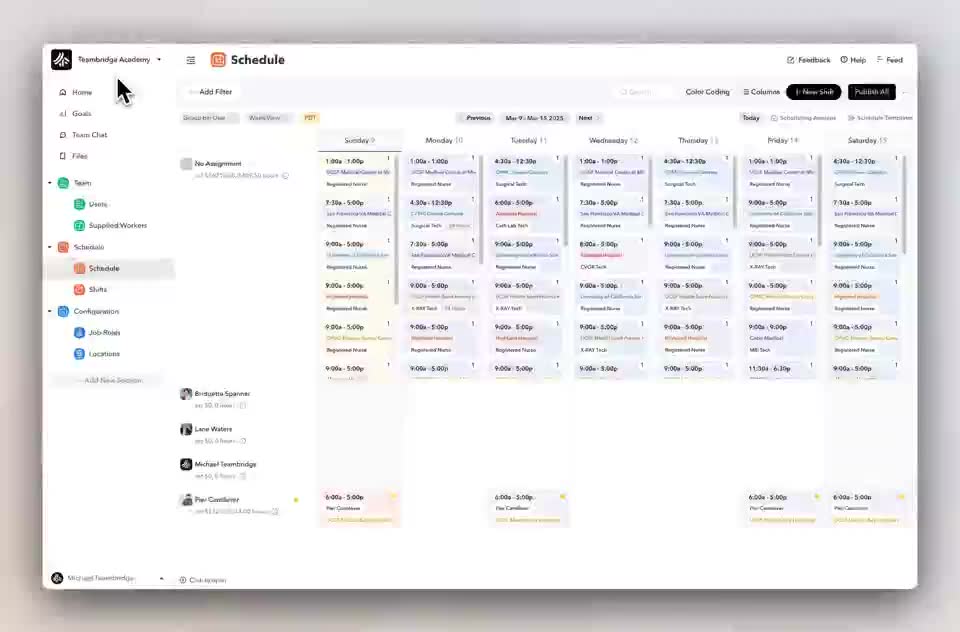
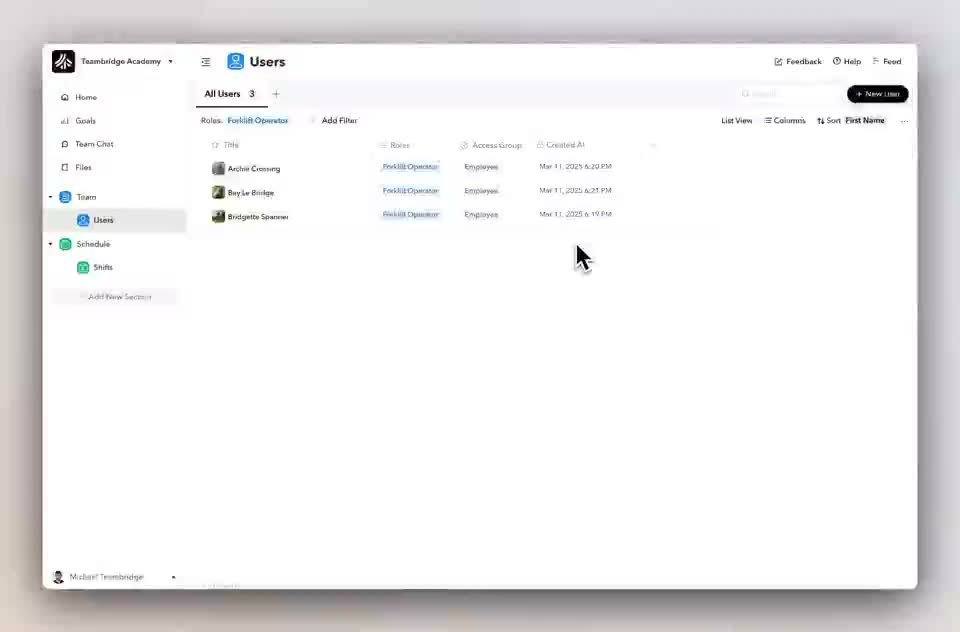
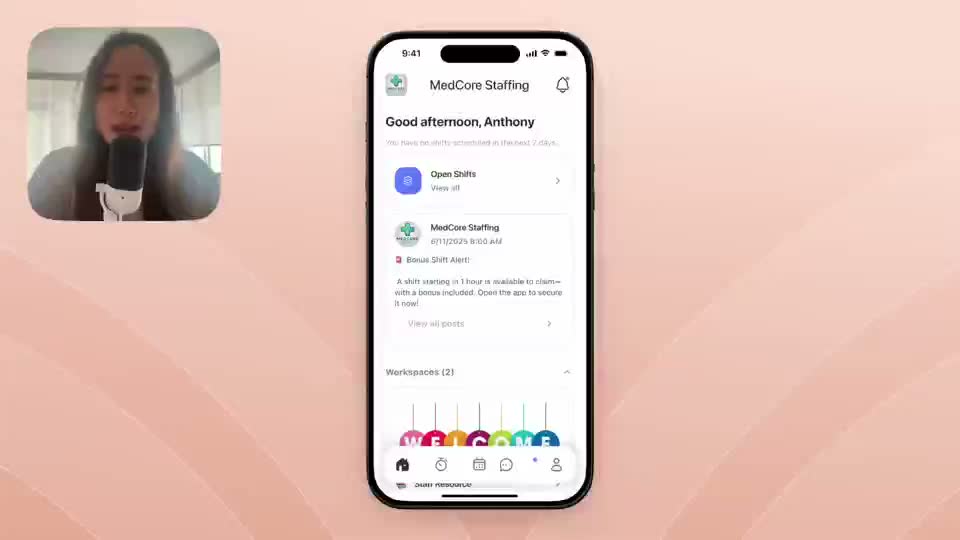
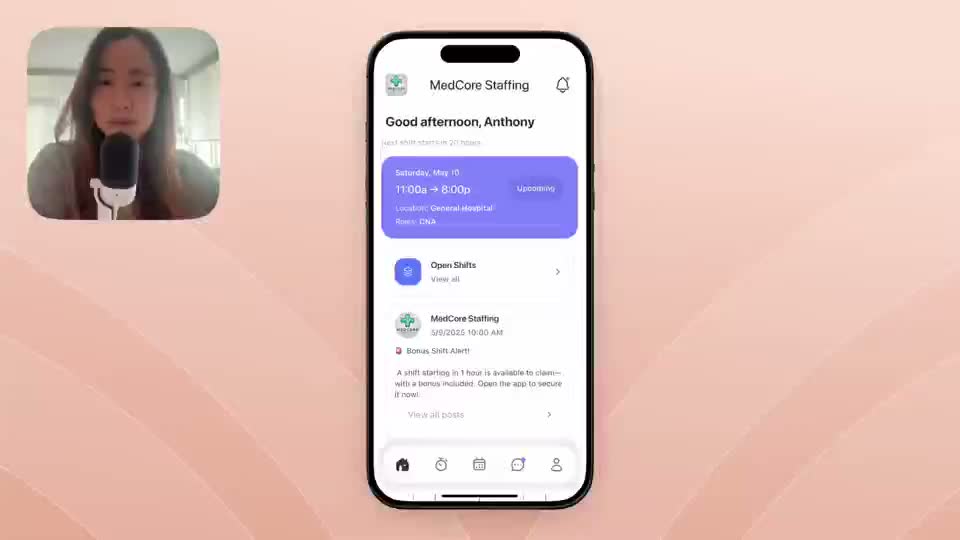
Filling open shifts Teambridge helps admins identify open shifts, notify qualified staff, recommend eligible workers, and track acceptance from one workspace.
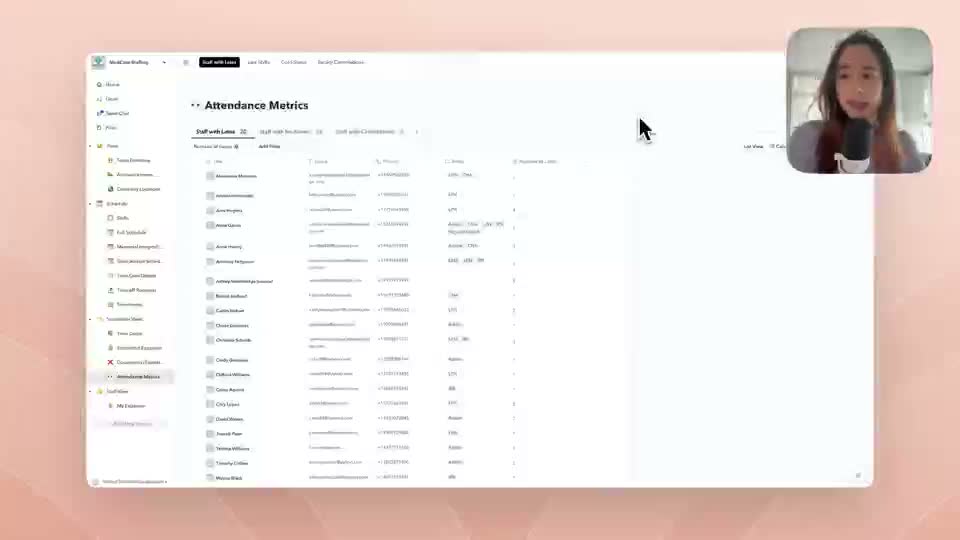
Open the Shifts workspace Filter for shifts with no assignee Review role, location, schedule, and eligibility Broadcast the opening or send targeted outreach Use recommendations to identify qualified and available workers Assign the worker after confirmationOpen deep dive Attendance status and performance tiers Attendance signals such as late shifts, no-shows, cancellations, and facility cancellations can drive coaching, visibility, and tier changes.
Capture attendance outcomes on Shifts Roll up counts to Users and Locations Create performance tier records Define thresholds for tier changes Use tier values in shift visibility, recommendations, or approval rulesOpen deep dive Overtime control Overtime rules can block requests automatically or flag them for admin review before the shift is approved.
Track worked and scheduled hours Define client or location overtime rules Choose block or review mode Show risky requests in a review workspace Store the decision for payroll and audit contextOpen deep dive Client and facility access Clients can participate in operations without receiving full admin access.
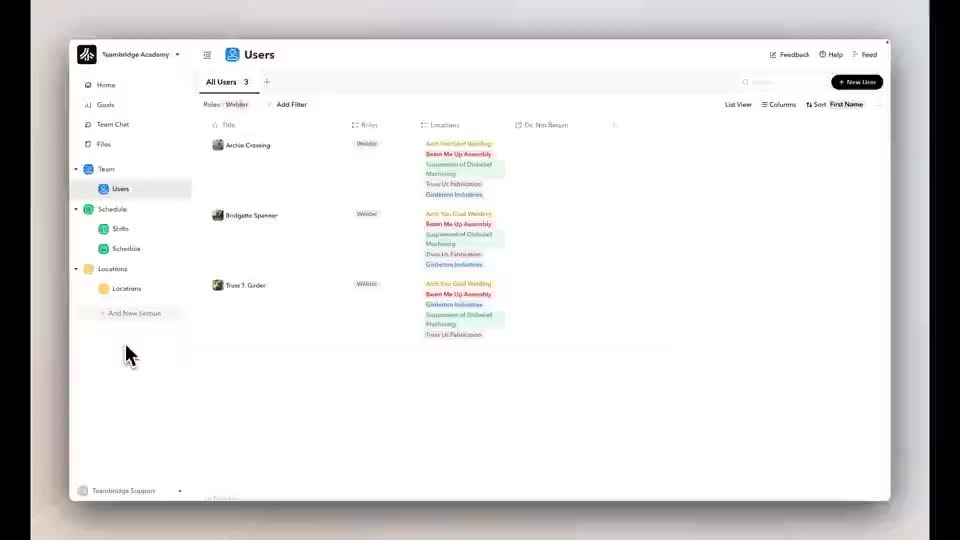
Create client or facility access groups Expose only relevant workspaces and collections Allow approved actions such as creating shifts or surveys Hide sensitive payroll and admin settings Review submitted demand or feedback from admin workspacesOpen deep dive Payroll and billing adjustments Mobile submissions and worker attributes can become structured payroll and billing signals.
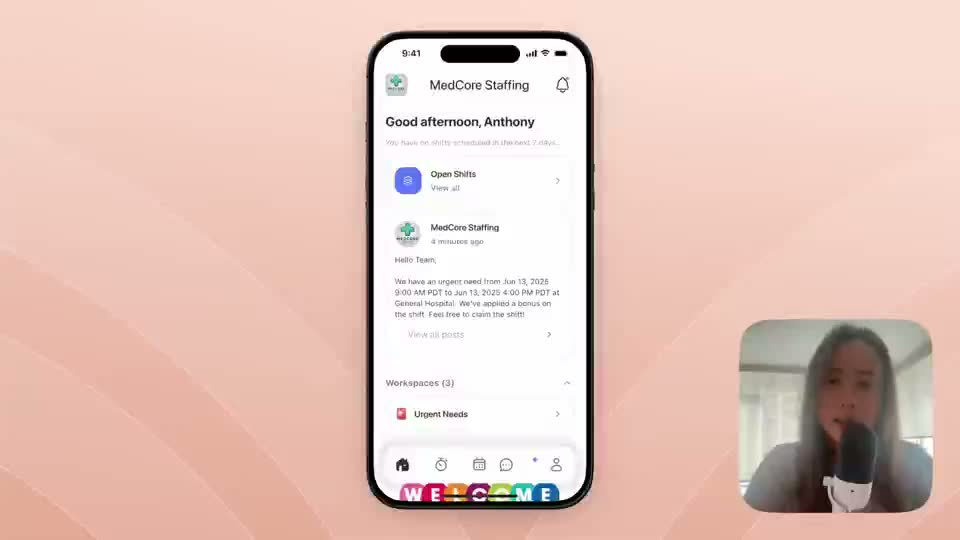
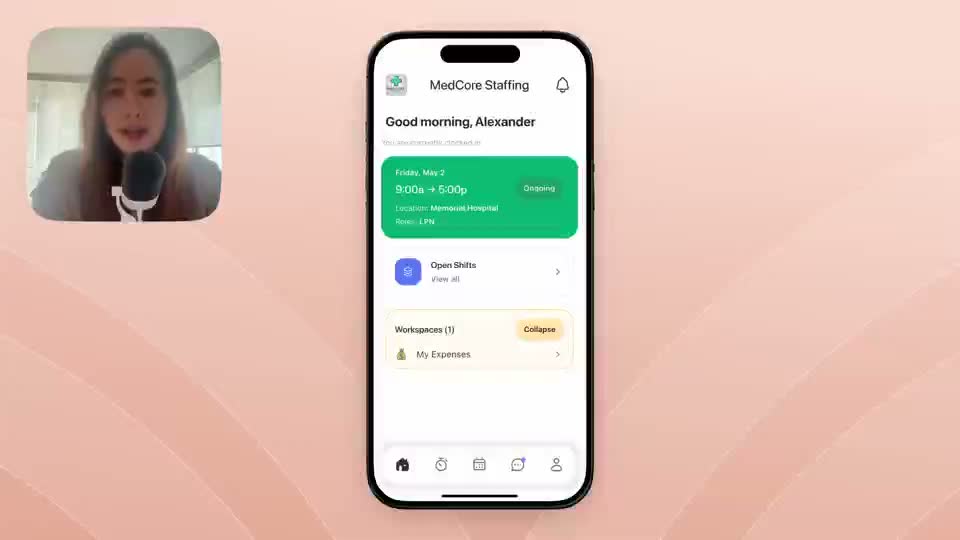
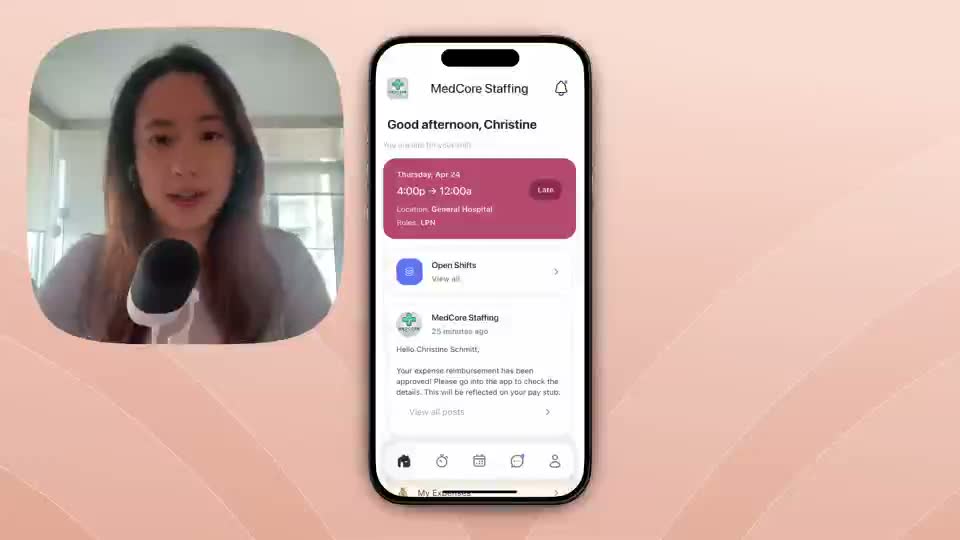
Create adjustment or reimbursement records Link submissions to workers and shifts Review and approve from admin workspaces Apply approved values to pay or bill calculations Keep timestamped records for audit and exportOpen deep dive Mobile information and custom content Teambridge can publish instructions, training, policy information, and facility-specific content to workers.
Create the content or canvas workspace Decide who should see it Publish it to the mobile experience Keep the content connected to facilities, roles, or policies Review usage and update content when operations changeOpen deep dive